

Tapio RQP Live
RQP Live tutorial
Short videos to help you get started with Tapio RQP Live — from unboxing and correct measurement technique to alert limits, data transfer and advanced analysis in Tapio RollView.
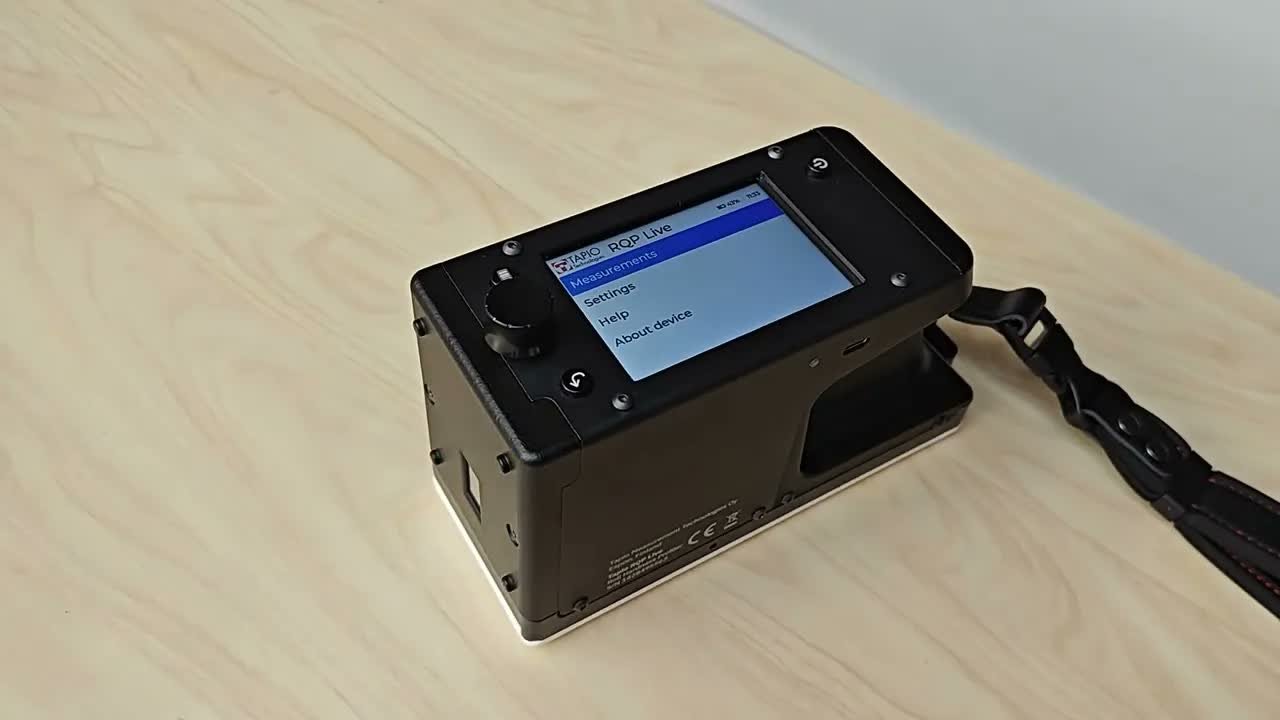
Getting started with RQP Live
Overview of the device, controls, and basic operation.
Tips
- Use a USB-C Power Delivery 20V compatible charger for quick charging. With quick charging, the battery is charged from empty to full in 2 hours, giving over 12 hours of operating time.
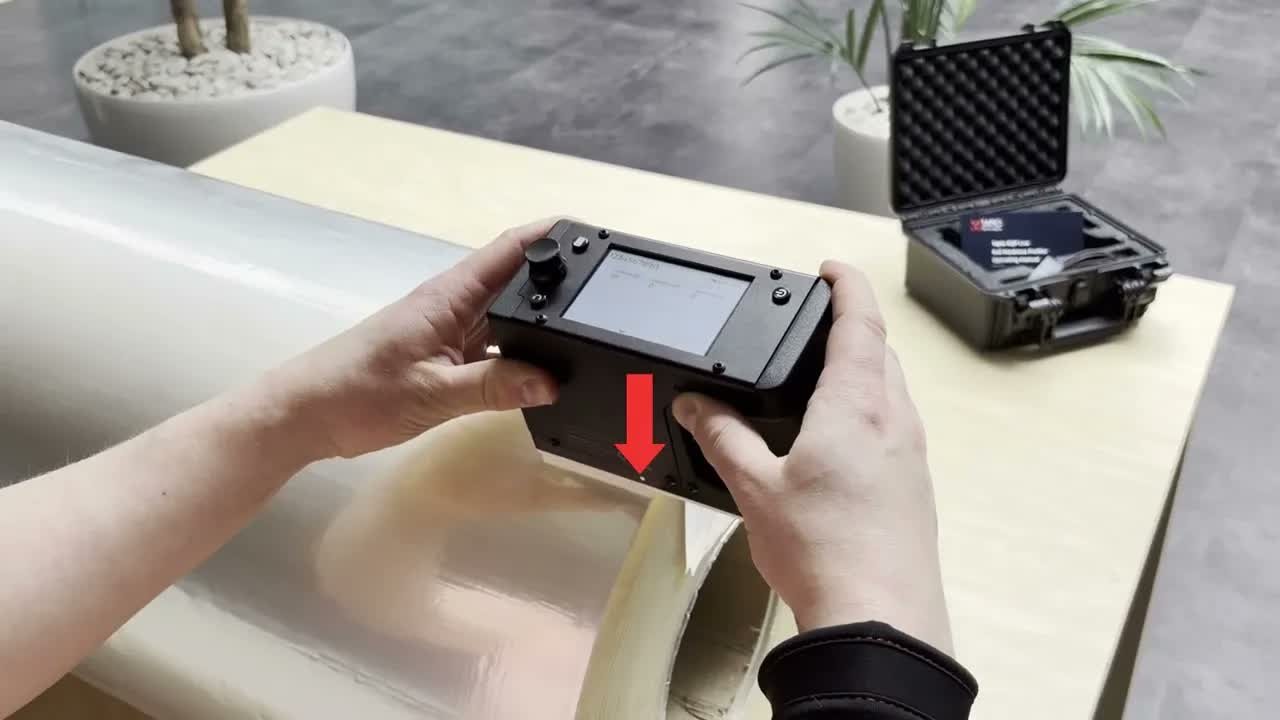
Measuring roll hardness profiles with Tapio RQP Live
Power on the device, create or select a folder, measure a profile, and view the results. Includes correct measurement technique.
Tips for accurate measurements
- Wait until the hammer hitting has stabilized before moving the device
- Make sure the device bottom has good contact on the roll and the device is not tilting.
- Keep a steady measuring speed of approximately 15 cm/s
- Stop moving at the roll end before lifting. By default, the device removes the last 15 knocks (0.5 seconds).
- Always measure multiple profiles in a folder to ensure repeatability and to obtain more accurate mean profile statistics
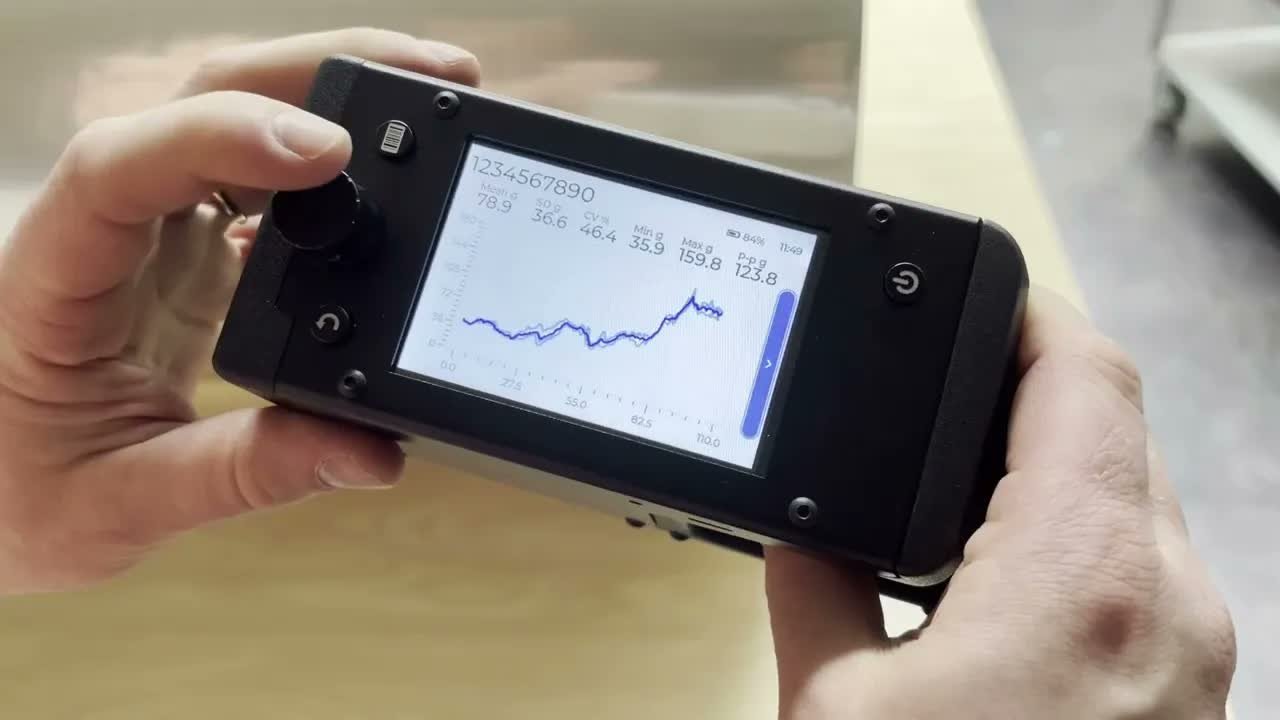
Working with profiles and folders
Select profiles, view results, and manage folders directly on the device.
Tips
- The Quick measure setting can be used to create a folder automatically when the device is pushed on a sample
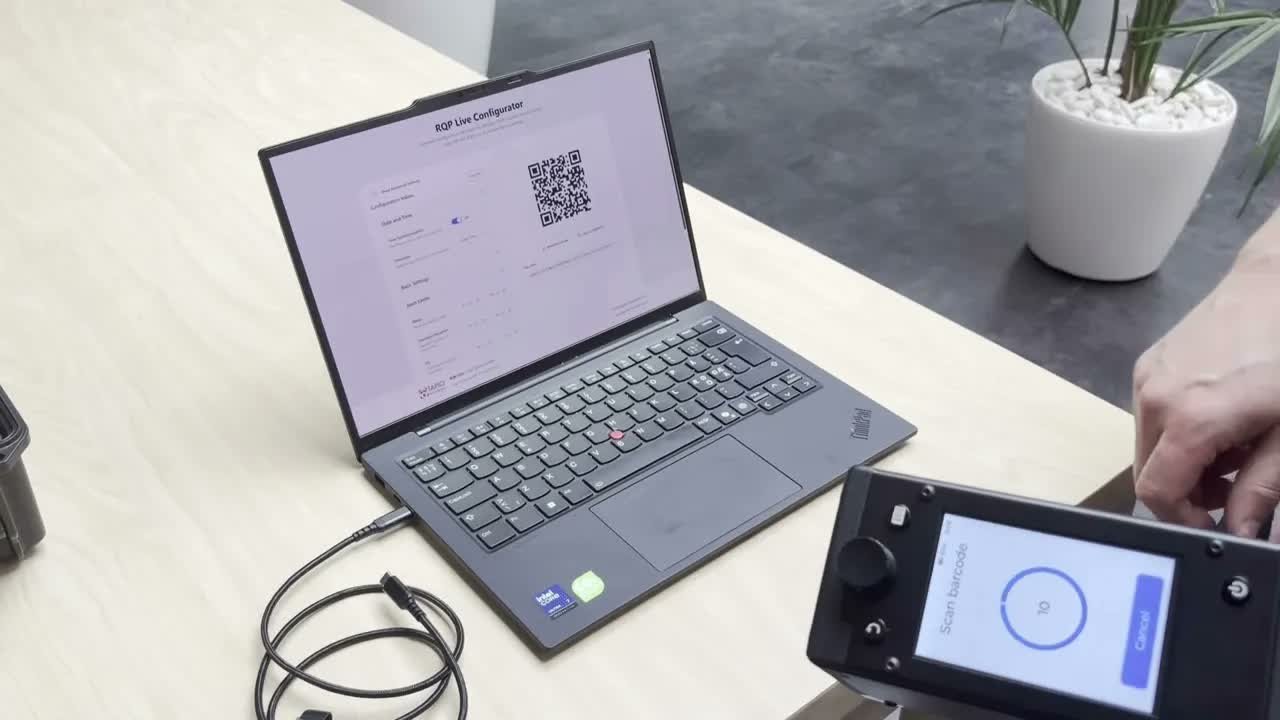
Setting alert limits and device settings
Adjust alert limits and configure device settings from the device menu or by using the RQP Live Configurator.
Tips
- The device clock can also be set with the RQP Live Configurator
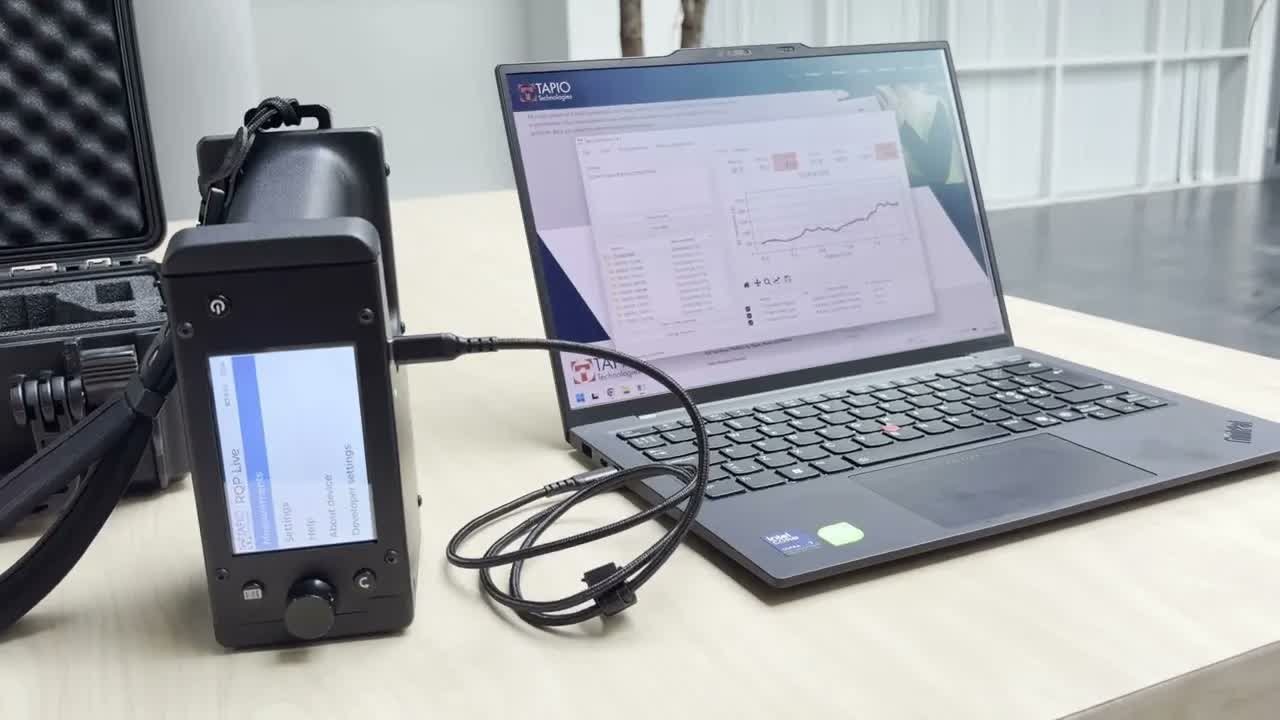
Transferring data to PC with RollView
Transfer measurement data to your PC and explore it in Tapio RollView. The free RollView software is available on the downloads page.
Tips
- On sync, folders and profiles are transferred from the device to PC and the device is emptied.
- The device clock is updated to match the PC clock when synchronizing with RollView
- The standard postprocessors in RollView (creating Excel, JSON and image files) can be extended to create and transfer the profiles in any format.
- Check the Advanced settings for analysis features such as adjustable filters, spectral analysis, exclude regions and highlight zones.
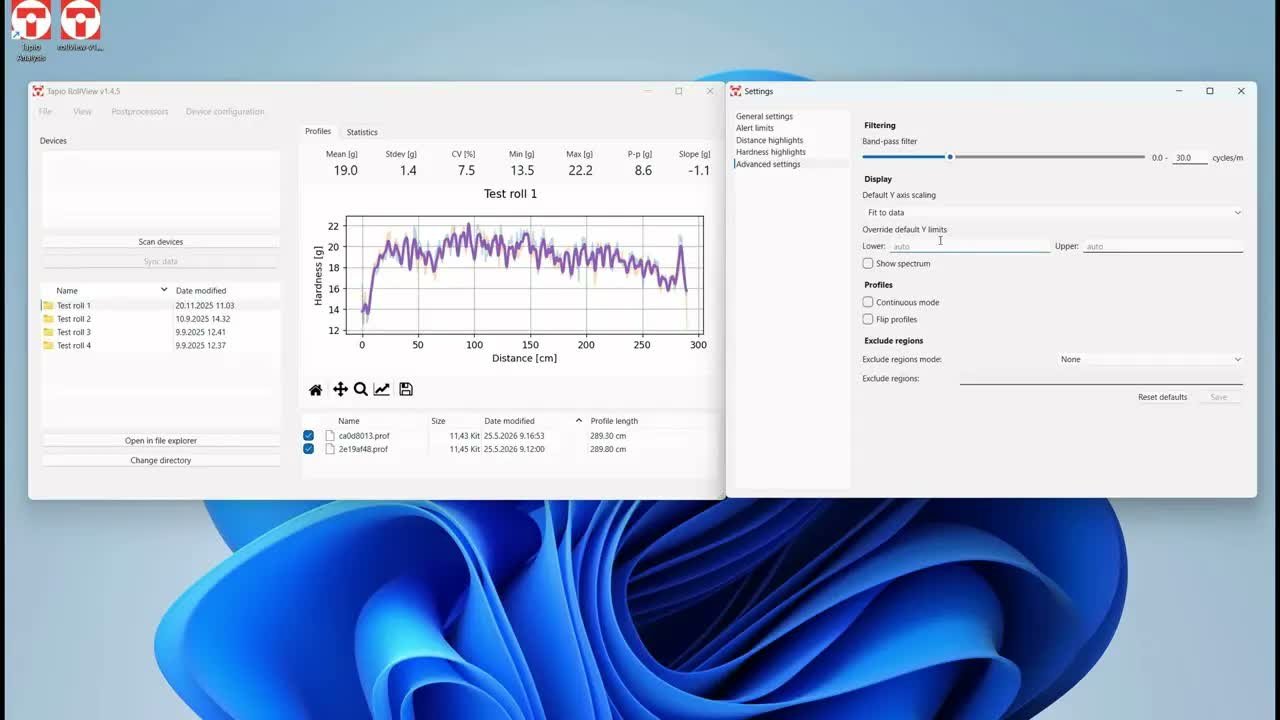
Advanced analysis features and settings in Tapio RollView
RollView has features for excluded regions, highlight zones, Y-axis limits, low pass filter, spectral analysis, continuous mode, custom postprocessors, loading and saving settings.
Glossary
- Profile
- A hardness profile measured along the roll width. A profile consists of hardness values measured at known distances.
- Folder
- A collection of profiles belonging to one roll. All profiles are stored in folders.
- Mean profile
- The average profile calculated from multiple profiles in a folder.
- Mean profile statistics
- Statistical values calculated from the mean profile, describing profile variation.
- Hardness value
- The measured value at a single position, based on measured hammer deceleration.
Questions about RQP Live?
Book a remote demo, or ask us about measurement technique, alert limits or integrating RollView with your quality system.